
The Read It voice guide · October 6, 2026
A better voice makes a better listen.
If your browser’s default voice sounds robotic, you have another option. Read It includes clear, natural-sounding female and male voices that generate speech right on your computer. Here’s how to find your favorite.
Start with the Read It voices
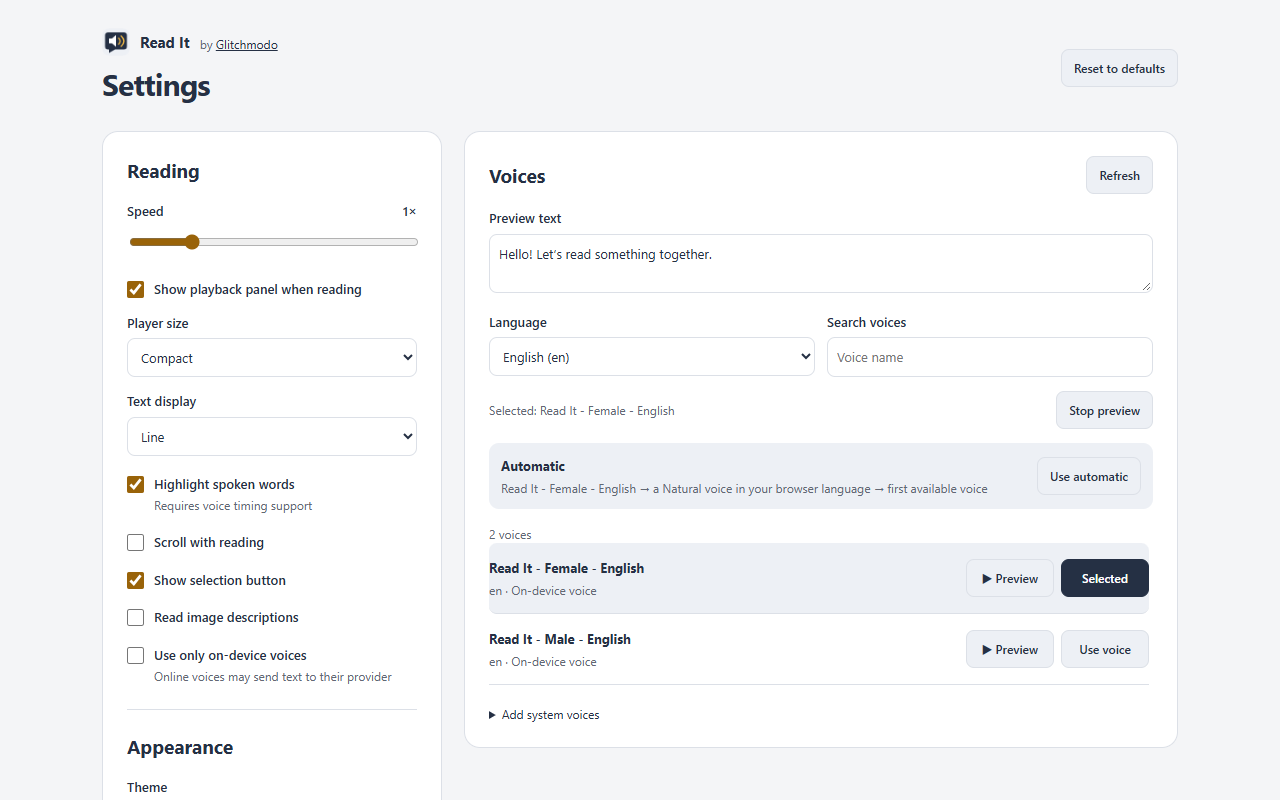
Open the extension’s Settings and look for voices named Read It - Female - English and Read It - Male - English, or the matching names in your language. When the voice files are ready, an English-language browser starts with the female English voice. If you’ve already chosen a voice, Read It keeps your choice.
One set of voice files covers all five supported languages. You don’t need a separate model download for each language or voice.
| Language | Female voice | Male voice |
|---|---|---|
| English | Read It - Female - English | Read It - Male - English |
| French | Read It - Female - French | Read It - Male - French |
| Spanish | Read It - Female - Spanish | Read It - Male - Spanish |
| Portuguese | Read It - Female - Portuguese | Read It - Male - Portuguese |
| Korean | Read It - Female - Korean | Read It - Male - Korean |
Voice labels may be translated to match your browser’s interface language. These are Read It’s built-in Supertonic 2 voices.
Try a few voices in four steps
- Open Settings from the Read It extension.
- Choose a Language. The list starts with your browser’s language; choose All to explore every available voice.
- Click Preview beside a voice. You can change the preview text to a sentence you’d actually like to hear.
- Click Use voice beside your favorite. Read It remembers it for your next reading.
Try both the female and male voices, then find a comfortable speed. You can adjust it from 0.5× to 3× in Settings or in the player while listening.
Do I need to download anything?
Edge and Chrome
The Read It voice files are included with the extension. The installation download is approximately 248 MB. No separate voice application or model download is needed.
Firefox
The extension itself is approximately 4 MB. After installation, a setup tab downloads approximately 244 MB of model data from Glitchmodo’s public GitHub release. This is a one-time setup for all five languages and both voice presets.
You’ll see download progress and Cancel and Retry controls. Completed, verified files are kept if you need to retry. If you close setup, open Settings and choose Set up Read It voices to continue. Browser voices remain available while setup is incomplete.
Resetting your preferences keeps the downloaded models. Removing the extension removes its stored data. The download sends no reading text or webpage addresses to GitHub; GitHub receives ordinary connection information, such as your IP address.
The first reading can take a moment
Read It may show Warming up the voice system, followed by Generating the speech. It’s preparing speech on your computer. The wait depends on the computer and the amount of text, so a short paragraph is a useful first test.
Once the files are ready, Read It’s own voices can work offline. Speech generation still uses your computer’s processing power.
What about other browser voices?
Settings also lists voices your browser makes available. These vary by browser, operating system, and installed language packs. An operating system’s voice downloads don’t necessarily become available to extensions; for example, a voice listed in a screen reader may not appear in your browser.
If you install a supported system voice, restart your browser and check Read It’s voice list again. Read It uses supported browser voice interfaces; it doesn’t unlock private voice services.
Some browser voices are online services and may send the text you ask to read to their provider. Turn on Use only on-device voices in Settings if you prefer local speech only. Firefox asks for its website-content transmission permission before enabling online browser voices. See the Privacy Policy for details.
A few things that can help
- The voice sounds robotic: check which voice is selected. Try a Read It voice instead of a basic system voice.
- Words don’t highlight: some browser voices don’t provide reliable word timing. Speech still plays, but Read It may show passage-level progress instead.
- Chrome shows a Live Caption bubble: Chrome controls this separately. Turn it off in Chrome’s Accessibility settings; Read It Settings includes a link there.
- Firefox setup didn’t finish: check your connection and available storage, then use Retry or reopen voice setup from Settings.
- A word sounds wrong: try it in a short preview sentence and tell us the voice and word. Please avoid sending private text.
Ready for your next listen?
Highlight a passage and click the Read It button that appears beside it. Prefer the keyboard? Press Ctrl+Shift+R. Your browser may leave the shortcut unassigned if it conflicts with another shortcut; Settings provides the supported way to change it. You can return to Settings anytime to try another voice.